> ## Documentation Index
> Fetch the complete documentation index at: https://actianvectorai-docs-feedback-implementation.mintlify.site/llms.txt
> Use this file to discover all available pages before exploring further.
# Local UI
> Explore collections, run searches, and inspect data through the browser-based interface.
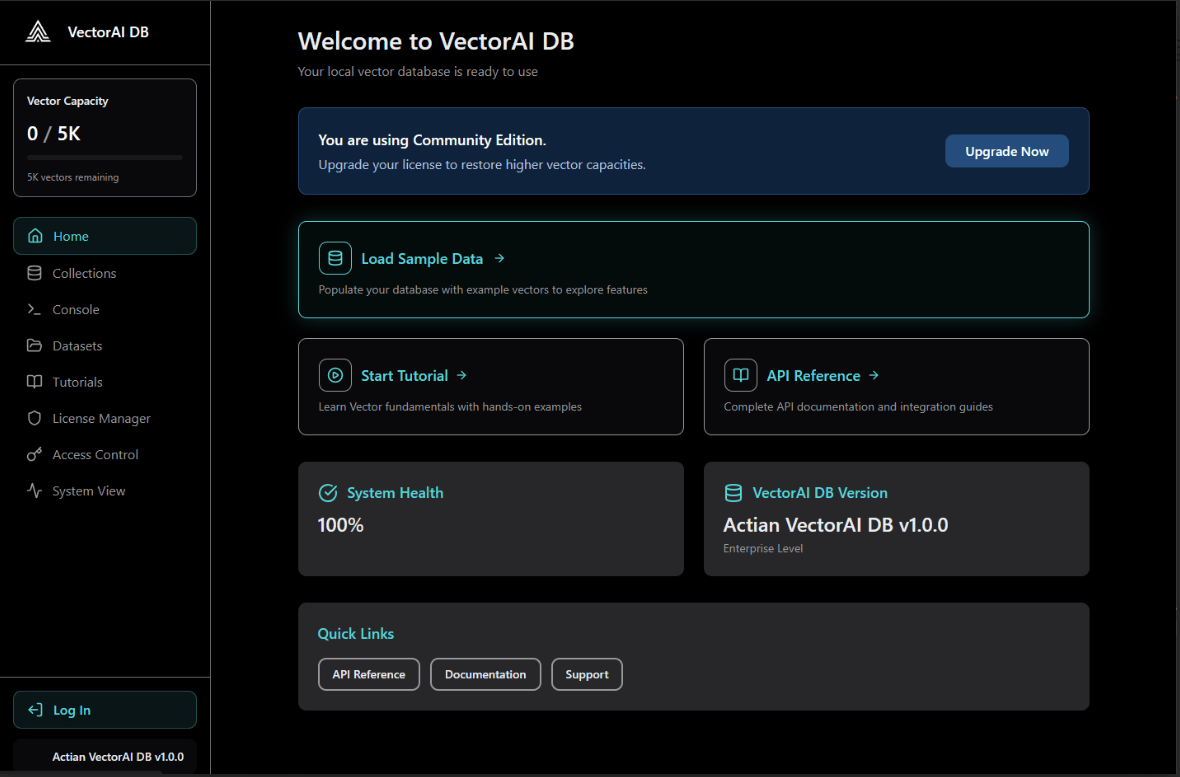
The Local UI is available at `http://localhost:6575` once the VectorAI DB Docker container is running. No login is required for local deployments. See [Docker setup](/home/installation/instructions) if you need to start the container first.
 ## Dashboard sections
| Section | Description |
| ----------- | --------------------------------------------------- |
| Console | Execute REST API calls and inspect raw responses. |
| Collections | Browse, manage, and search your vector collections. |
## Console
The Console lets you run ad-hoc REST API requests, test queries, and inspect JSON responses alongside HTTP status codes — all from the browser.
## Collections
The Collections section gives you a visual overview of all collections in VectorAI DB.
* View all existing collections and their configuration.
* Inspect vector count, dimension size, and distance metric for each collection.
* Browse individual vectors and their associated payloads.
* Run similarity searches against a collection using a vector or an existing record's ID.
* Delete collections you no longer need.
### Browsing vectors
Select any collection to open its detail view: a paginated table of stored vectors with their payload fields. Filter by payload values to locate specific entries.
### Running a search
Select the collection you want to search from the Collections list.
Click the *Search* tab within the collection detail view.
Enter a JSON array representing your query vector in the input field.
Configure `top_k` to control how many results to return. Optionally apply payload filters to narrow results.
Click *Search* to execute. Results appear ranked by similarity score, with each result showing its ID, score, and payload.
## Next steps
Install and configure the Python SDK.
Explore the full REST API reference.
Understand the data model, architecture, and how search works.
Resolve common issues with VectorAI DB.
## Dashboard sections
| Section | Description |
| ----------- | --------------------------------------------------- |
| Console | Execute REST API calls and inspect raw responses. |
| Collections | Browse, manage, and search your vector collections. |
## Console
The Console lets you run ad-hoc REST API requests, test queries, and inspect JSON responses alongside HTTP status codes — all from the browser.
## Collections
The Collections section gives you a visual overview of all collections in VectorAI DB.
* View all existing collections and their configuration.
* Inspect vector count, dimension size, and distance metric for each collection.
* Browse individual vectors and their associated payloads.
* Run similarity searches against a collection using a vector or an existing record's ID.
* Delete collections you no longer need.
### Browsing vectors
Select any collection to open its detail view: a paginated table of stored vectors with their payload fields. Filter by payload values to locate specific entries.
### Running a search
Select the collection you want to search from the Collections list.
Click the *Search* tab within the collection detail view.
Enter a JSON array representing your query vector in the input field.
Configure `top_k` to control how many results to return. Optionally apply payload filters to narrow results.
Click *Search* to execute. Results appear ranked by similarity score, with each result showing its ID, score, and payload.
## Next steps
Install and configure the Python SDK.
Explore the full REST API reference.
Understand the data model, architecture, and how search works.
Resolve common issues with VectorAI DB.